Your Profile
Access your profile by clicking your avatar in the top bar and selecting "My Profile".
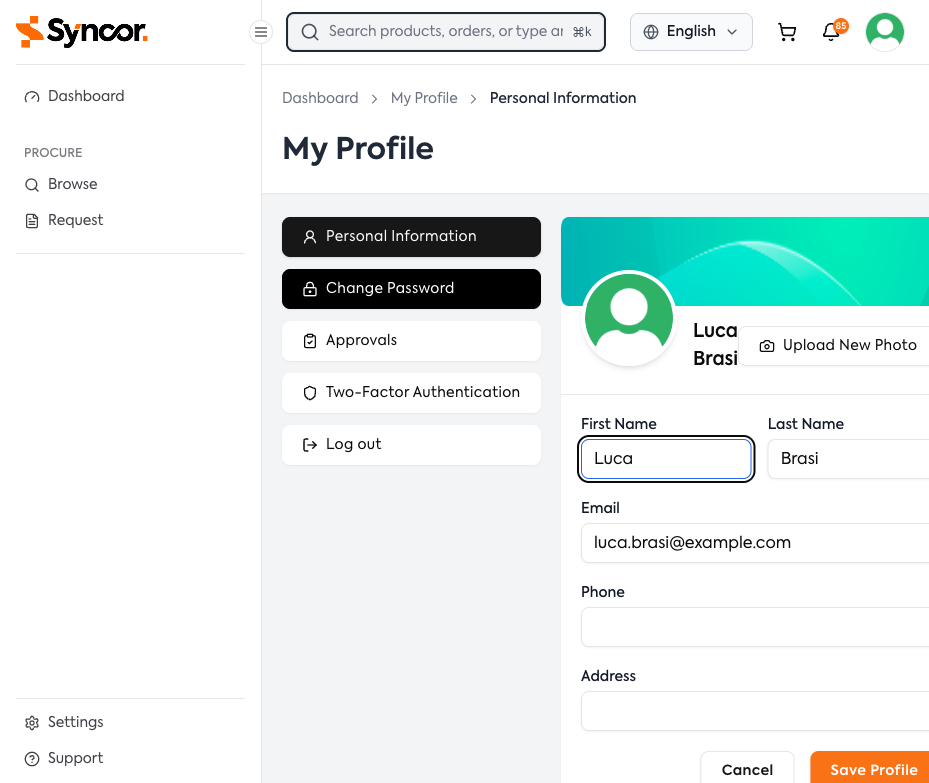
Profile Sidebar
- Personal Information — Edit your basic details
- Change Password — Update your password
- Approvals — Manage Out of Office (approvers only)
- Two-Factor Authentication — Enable or disable 2FA
- Log out — Sign out
Personal Information
Update your name, email, phone, and address. Click "Save Profile" to save, or "Cancel" to revert.
To update your avatar, click "Upload New Photo". An existing photo shows a "Remove" option.
Changing Your Password
- Enter your Current Password.
- Enter and confirm your New Password.
- Click "Change Password".
If your current password is incorrect, the fields clear and you'll see an error.
Two-Factor Authentication
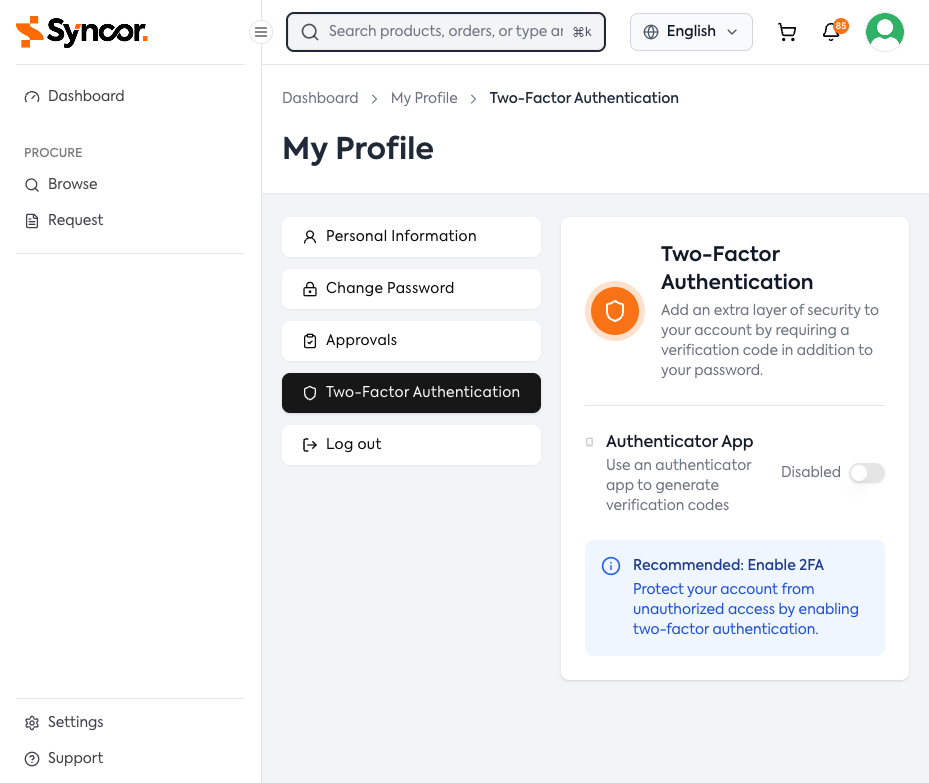
Enabling 2FA
- Toggle the switch to ON.
- Step 1 — Scan the QR code with your authenticator app (or enter the secret key manually). Click Next.
- Step 2 — Enter the 6-digit code from your app.
- Step 3 — Copy and save your 10 recovery codes in a secure location. Each code works once.
Disabling 2FA
Toggle to OFF and confirm with your current password and a 6-digit code from your app.
Enforced 2FA
If your organization enforces 2FA, the toggle is locked ON. The setup modal opens automatically at login and cannot be skipped.
Out of Office (Approvers)
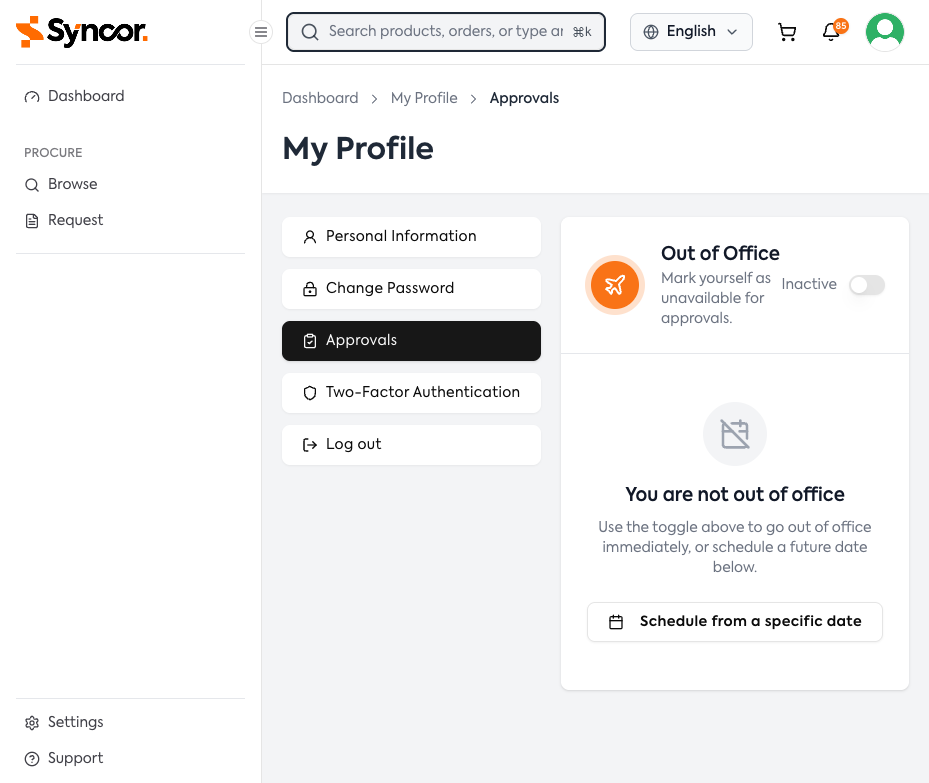
When active, purchase requests are rerouted to other available approvers.
| State | Description |
|---|---|
| Inactive | Available for approvals |
| Active | Currently out of office |
| Scheduled | Out of office scheduled for a future date |
Activate Immediately
Toggle the switch to ON.
Schedule Out of Office
- Click "Schedule from a specific date".
- Select the Active From date (today or later).
- Click Schedule.
When scheduled, use Cancel to cancel or Change to pick a different date.
Deactivate
Toggle to OFF and confirm in the dialog.
Changing Your Language
Click the Language Selector in the top bar to switch languages:
| Language | Notes |
|---|---|
| English | Default |
| Hindi (हिन्दी) | |
| Punjabi (ਪੰਜਾਬੀ) | |
| Urdu (اردو) | RTL layout |
| Arabic (العربية) | RTL layout |
Your preference is saved and persists across sessions. The selector is available on every page including the login page.