Logging In & Authentication
Logging In
To access Syncor, navigate to your organization's unique URL:
https://yourcompany.syncor.com
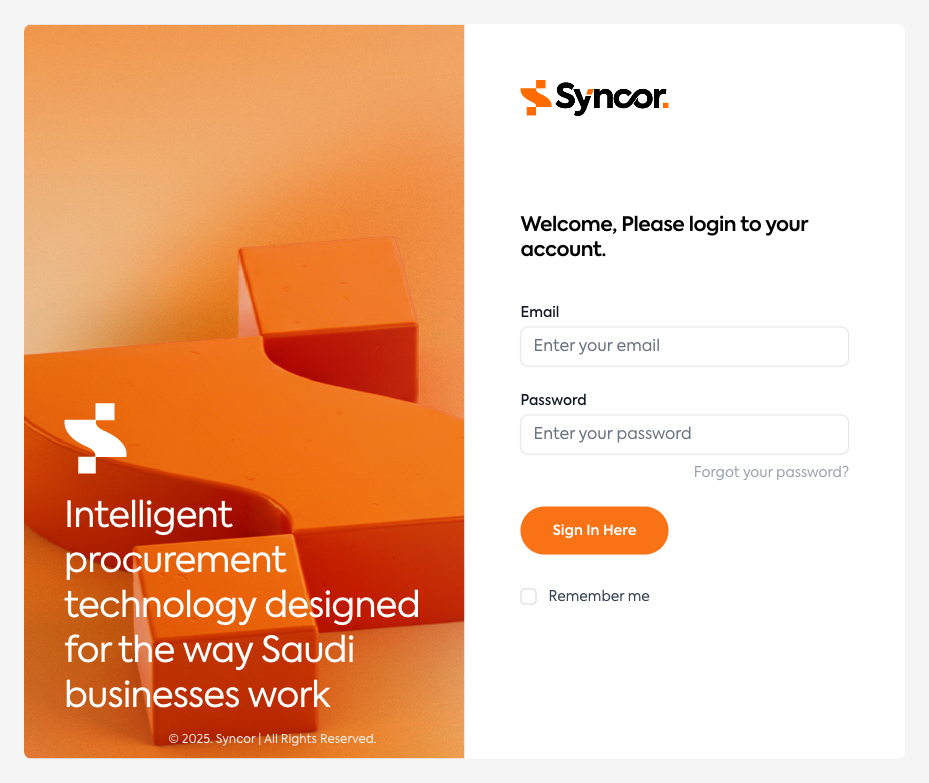
Steps to Log In
- Enter your Email address.
- Enter your Password.
- (Optional) Check Remember me to stay logged in on this device.
- Click Sign In Here.
tip
If you don't know your Syncor URL, contact your system administrator.
Troubleshooting Login Issues
- "These credentials do not match our records" — Double-check your email and password. Passwords are case-sensitive.
- Account locked — After multiple failed attempts, your account may be temporarily locked. Wait a few minutes or contact your administrator.
- Forgotten password — Click "Forgot your password?" below the password field.
Resetting Your Password
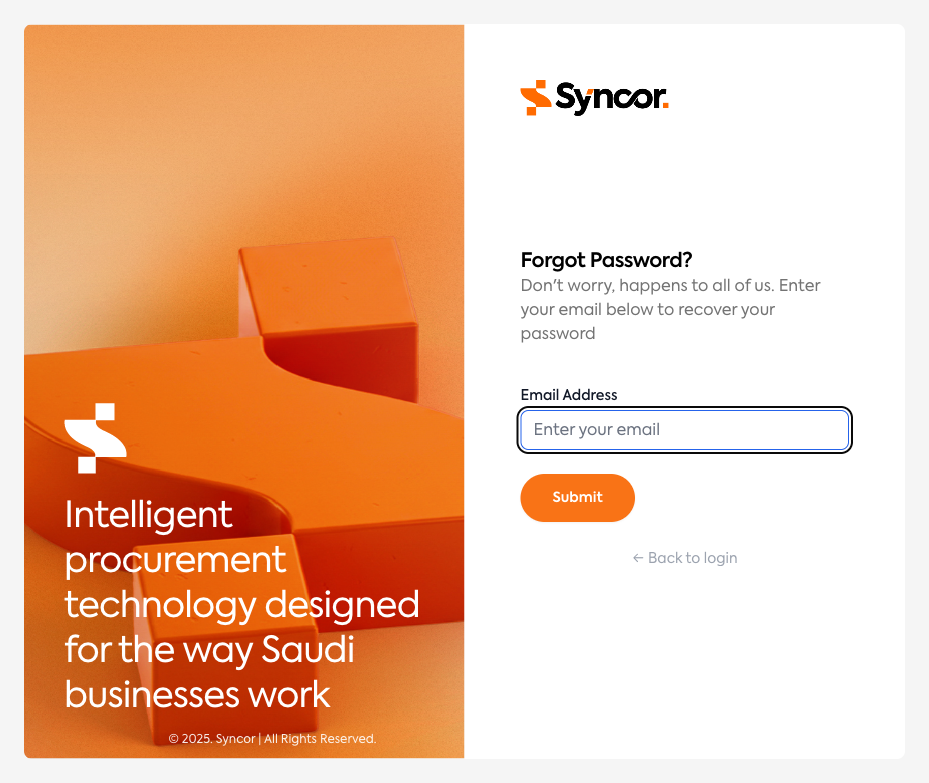
- On the login page, click "Forgot your password?"
- Enter your Email Address and click Submit.
- Check your email for a 6-digit verification code from Syncor.
- Enter the 6-digit code — the form auto-submits once all digits are entered.
- If you didn't receive the code, click Resend.
- On the Set New Password page, enter and confirm your new password.
- Click Submit — you'll be redirected to the login page.
tip
If you don't see the email, check your spam or junk folder.
Two-Factor Authentication at Login
If 2FA is enabled on your account, you'll see an additional verification screen after entering your credentials.
Entering Your Authentication Code
- Open your authenticator app (Google Authenticator, Microsoft Authenticator, Authy, etc.).
- Find the entry for Syncor and note the current 6-digit code.
- Enter the code — the form auto-submits once all digits are entered.
Using a Recovery Code
If you don't have access to your authenticator app:
- Click "Use Recovery Code" at the bottom of the 2FA screen.
- Enter one of your saved recovery codes.
- Click Verify.
Important
Each recovery code can only be used once. After using a recovery code, set up 2FA again from your profile settings and generate new recovery codes.
Accepting Terms and Conditions
When your organization updates its terms, you may be required to accept them before continuing.
- Click Read Terms to open the full terms dialog.
- Read through the terms and click Close.
- Check the acceptance checkbox.
- Click Accept.
note
You cannot proceed to the dashboard until you accept the terms. The Accept button is disabled until the checkbox is checked.