Creating & Managing a Request
Your Requests List
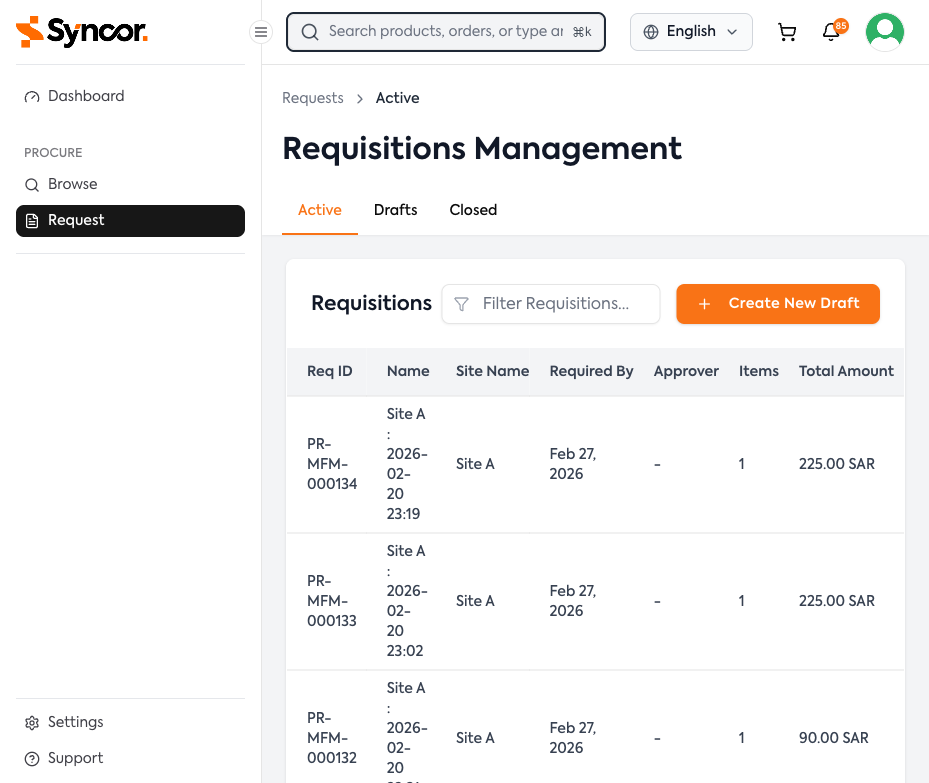
Three tabs organize your requests:
- Active — Submitted requests in progress
- Drafts — Started but not yet submitted
- Closed — Completed or manually closed
Table Columns
| Column | Description |
|---|---|
| Req ID | The unique PR number |
| Name | Your assigned request name |
| Site Name | Associated site |
| Required By | Delivery deadline |
| Approver | Current assigned approver |
| Items | Number of products |
| Total Amount | Sum of all line items |
| Status | Color-coded status badge |
| Actions | Three-dot menu |
Use the Filter Requisitions search box to search across all columns.
Row Actions
- Draft requests: Edit, Delete
- Submitted requests: View, Order Again
Creating a New Draft
- Click "+ Create New Draft" on the Request page.
- If you belong to multiple sites, a site selection modal appears — choose your site and confirm.
- You'll be taken to the Purchase Request Edit page.
tip
You can also start a draft by adding a product from the catalog — a draft is created automatically if none exists.
Filling in Request Details
Required Fields
| Field | Required | Description |
|---|---|---|
| Request Name | Yes | E.g., "Office Supplies Q1 2026" |
| Delivery Location | Yes | Select from available locations |
| Required By Date | Yes | When you need the items |
| Notes | No | Additional context for approvers |
| Attachments | No | Drag-and-drop supporting documents |
Reference Fields
If configured by your organization, custom reference fields appear below the main form (text, date, or checkbox fields). Required fields are marked with *.
Managing Products in Your Request
Product Table
| Column | Description |
|---|---|
| Product | Image, name, category badge, SKU |
| Quantity | +/- controls to adjust |
| UOM | Unit of measure |
| Unit Price | Price per unit |
| Total Amount | Quantity × unit price |
| Action | Delete (trash icon) |
- Adjust quantities — Changes save automatically.
- Remove a product — Click the trash icon.
- Add more products — Click "+ Add Products" to open the product modal without leaving the page.
Previewing the Approval Workflow
The Approvers Flow panel on the right shows who will review your request:
- Each approver shows name, avatar, and level badge (e.g., "Level 1")
- The workflow may recalculate as you edit the form
- If external approvers are enabled, toggle the External Approver option and enter their name and email
Saving and Submitting
The fixed footer shows summary information and action buttons.
| Button | Action |
|---|---|
| Save as Draft | Saves progress without submitting |
| Submit | Sends the request for approval |
Budget Warnings
- Warning (amber): Check "I acknowledge and authorize this requisition" before submitting.
- Block (red): Submission is prevented. Reduce the order amount or contact your budget administrator.
More Actions (⋮ menu)
- Close — Close a rejected or recalled request
- Delete — Permanently delete a new draft