Tracking Your Requests
Viewing a Submitted Request
Once submitted, a purchase request is read-only. Open it from the Active or Closed tabs.
Available Actions by Status
| Action | When Available | Description |
|---|---|---|
| Edit | Rejected | Returns the request to draft for editing |
| Close | Rejected / Recalled | Closes the request permanently |
| Recall | Pending Approval | Pulls back the request before approval |
| Order Again | Any status | Duplicates the request as a new draft |
Request Details View
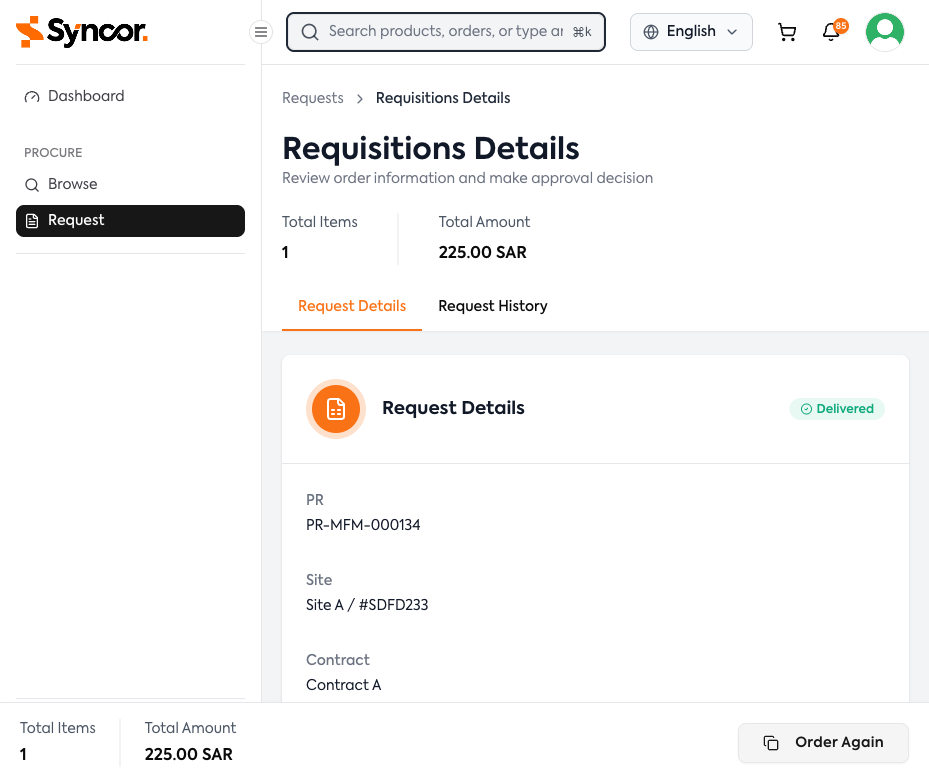
The Request Details tab shows all fields in read-only format: PR Number, Site, Contract, Required By Date, Delivery Location, Notes, reference fields, and attachments.
A status badge in the top-right corner shows the current status.
The Approvers Flow panel shows each approver's status (Approved / Assigned). External approver details appear here too, with a Resend Email option if the link has expired.
The Request Items Table lists all products with Sr.No, name, SKU, manufacturer, quantity, and line totals. Click any row to navigate to that product's detail page.
Request History Timeline
The Request History tab provides a chronological record of every event in the request's lifecycle.
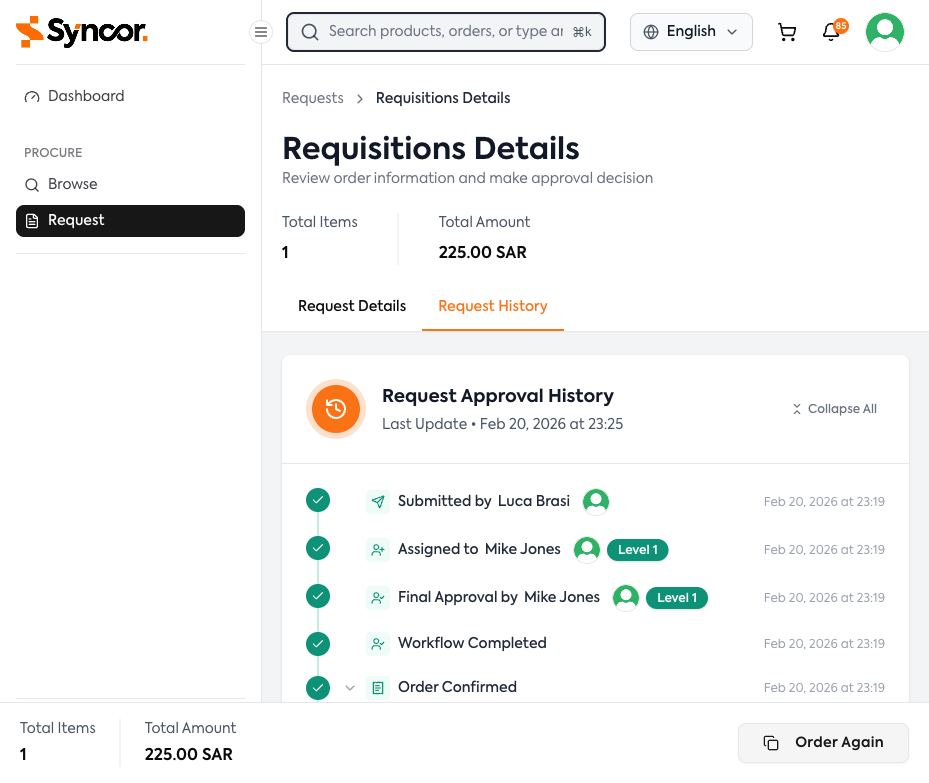
Each event shows a status indicator, icon, title, user information, level badge, and timestamp. Click the chevron (▼) on expandable events to reveal additional details such as sales order numbers, packing slip info, or proof of delivery links.
Use "Collapse All" / "Expand All" to toggle all events at once.
Event Types
| Event | Description |
|---|---|
| Submitted | PR was submitted for approval |
| Approved | An approver approved the PR |
| Final Approval | Last approver gave final approval |
| Rejected | An approver rejected the PR |
| Recalled | Requester recalled the PR |
| Order Confirmed | Sales order created in ERP |
| Shipment Notice Received | Shipment dispatched |
| Delivery Confirmed | Items delivered |
| Invoice Received | Invoice received |
| Payment Received | Payment processed |
| External Approver Approved / Rejected | External approver action |
Fulfillment Tracking
Once a Purchase Request reaches post-approval status, the Request History timeline shows detailed fulfillment events. Each event type has a distinct visual card with color coding for quick identification.
Shipment Events
When items are shipped, a Shipment card (blue) appears in the timeline showing:
- Packing slip number -- reference identifier for the shipment
- Expected delivery date -- when the items should arrive
- Line items -- each product shipped with name, SKU, and quantity
If a shipment is later corrected (e.g., quantities changed or delivery date updated), a Correction card (amber) appears showing the original and updated values with strikethrough formatting on changed fields.
Delivery Events
When items are delivered, a Delivery card (green) appears showing:
- Line items -- each product with the delivered quantity
- Partial delivery indicator -- if not all shipped items were delivered, a progress bar shows the percentage received (e.g., "5/10 -- 50%")
- Proof of Delivery -- if available, a link to download the ePOD (electronic Proof of Delivery) PDF
Invoice and Payment Events
Invoice and payment events appear as timeline entries confirming financial processing of the order.
Click the chevron (▼) on any fulfillment event to expand or collapse its details. Use "Expand All" to see all events at once.
Editing a Rejected Request
Revise and Resubmit
- Open the rejected request from the Active tab or the "Revise & Resubmit" link in your dashboard.
- Click Edit in the footer -- the request returns to Draft status.
- Make your changes.
- Click Submit to resubmit.
Check the Request History tab to read the rejection reason before editing.
Close the Request
- Click Close in the footer.
- Add an optional note in the confirmation modal.
- Click Confirm.
Order Again
Duplicate any existing request as a new draft:
- Open a requisition and click "Order Again" in the footer.
- Confirm in the modal.
- You'll be taken to a new draft with the same products and quantities.
The new draft copies products and quantities. You'll need to fill in the request details (name, delivery location, dates) fresh.