Tracking Sourcing Requests
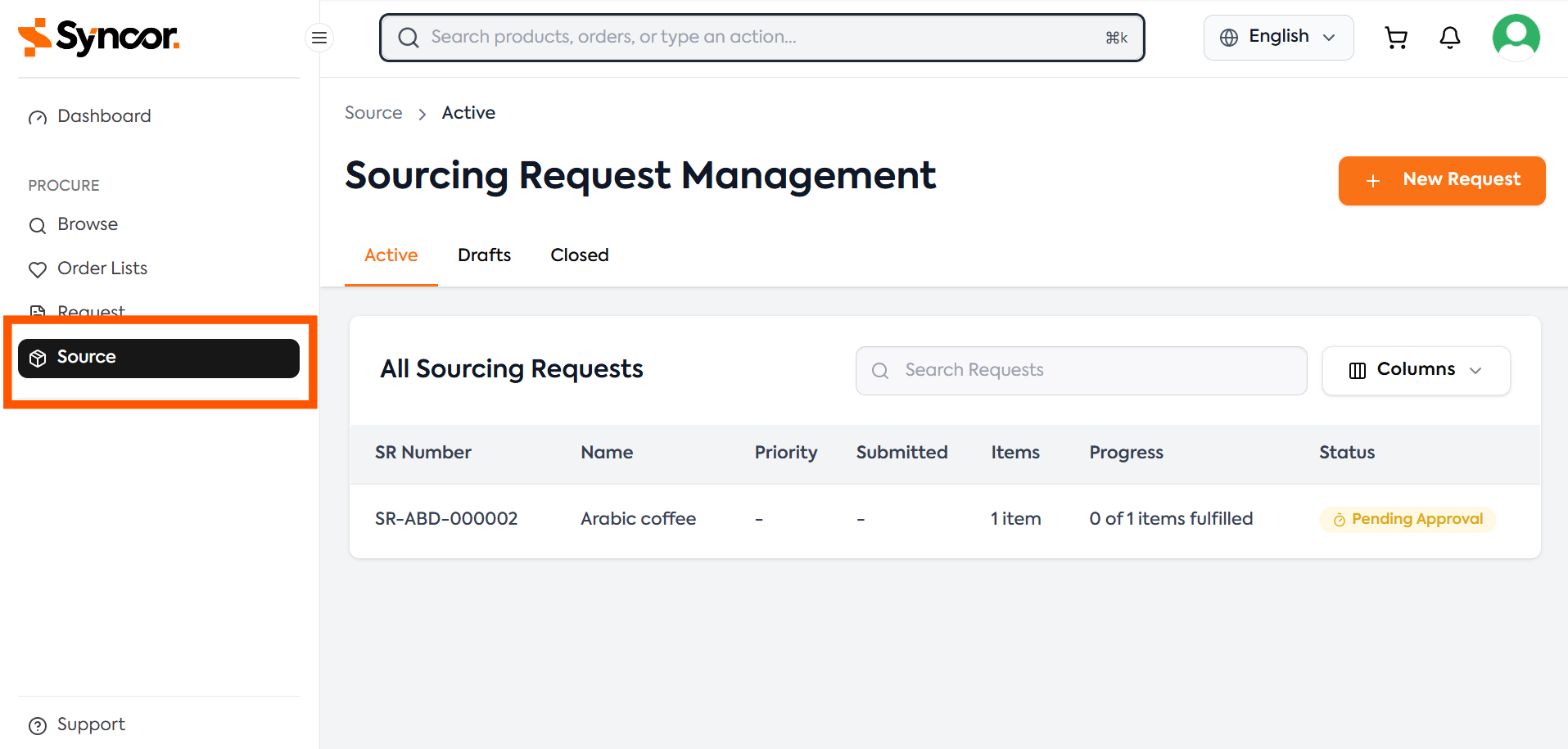
Use the Sourcing Requests page to find, open, and track requests throughout their lifecycle. For more information about the lifecycle of a Sourcing Request see Understanding Status Flow
Finding a Sourcing Request
A Sourcing Request becomes available on the Sourcing Requests page after it has been saved as a draft or submitted.
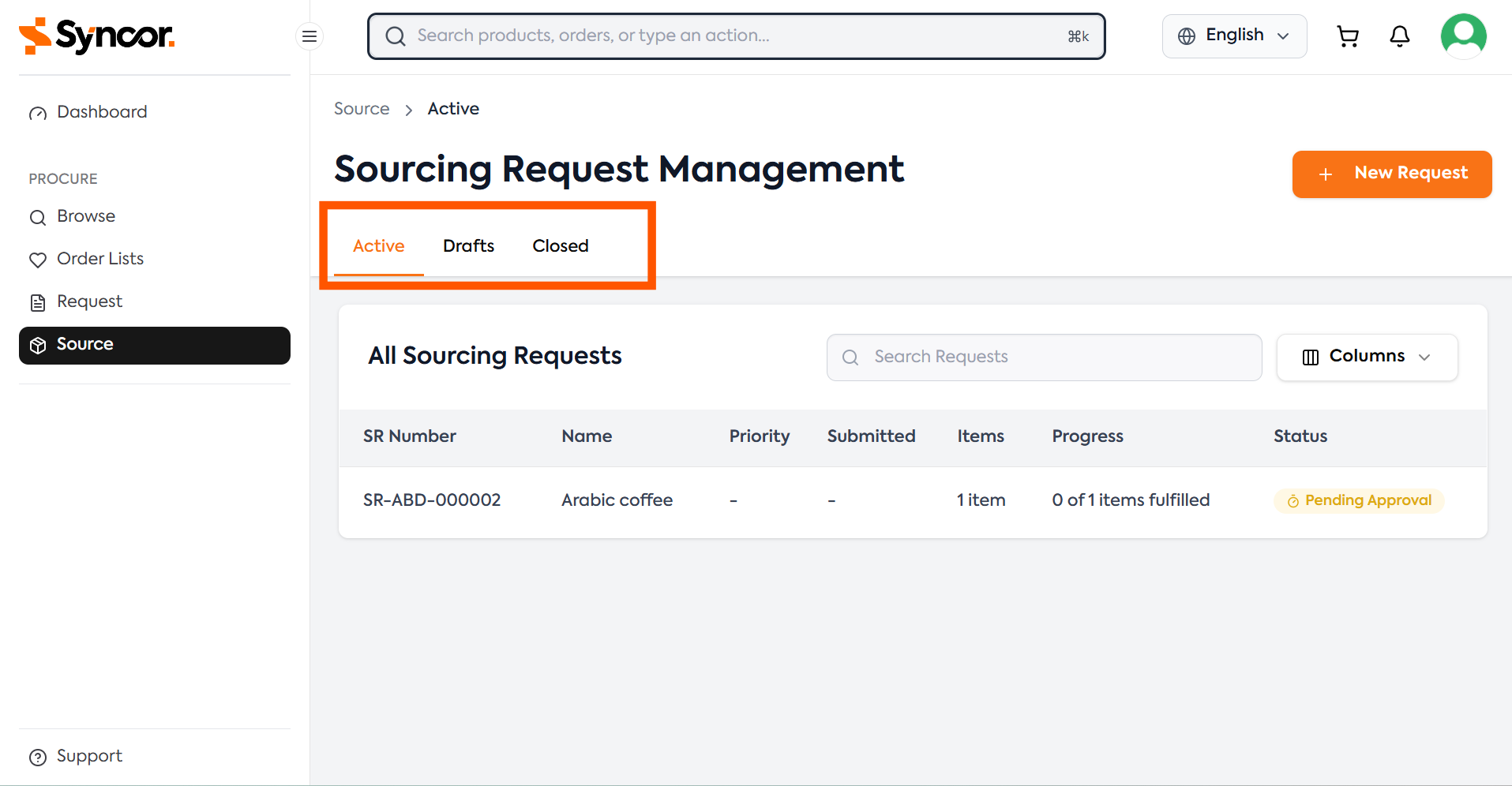
Use the following tabs to find a request:
| Tab | Description |
|---|---|
| Active | Requests that have been submitted and are still progressing through approval, review, or sourcing. |
| Drafts | Requests that have been saved but not yet submitted. |
| Closed | Requests that have been completed, cancelled, or otherwise closed. |
You can view:
- Sourcing Requests you created
- Sourcing Requests for sites to which you are assigned
- Sourcing Requests assigned to you for approval
Opening a Request
- Navigate to Sourcing Requests.
- Select Active, Drafts, or Closed.
- Find the required request.
- Select the request to open its details.
Available Actions by Status
The following actions are available when you created the Sourcing Request.
If you did not create the request and are not an assigned approver, the request is available in view-only mode.
| Action | When Available | Description |
|---|---|---|
| Submit Request | Draft | Submits the request for internal approval. |
| Edit | Draft or Rejected | Opens the request for editing. A rejected request can be updated and resubmitted. |
| Close | Rejected or Recalled | Permanently closes a request that is no longer required. |
| Recall | Pending Approval | Pulls the request back before the internal approval process is completed. |
Only close a request when it is no longer required. A closed request cannot continue through approval or sourcing and can't be re-opened.
Request Details
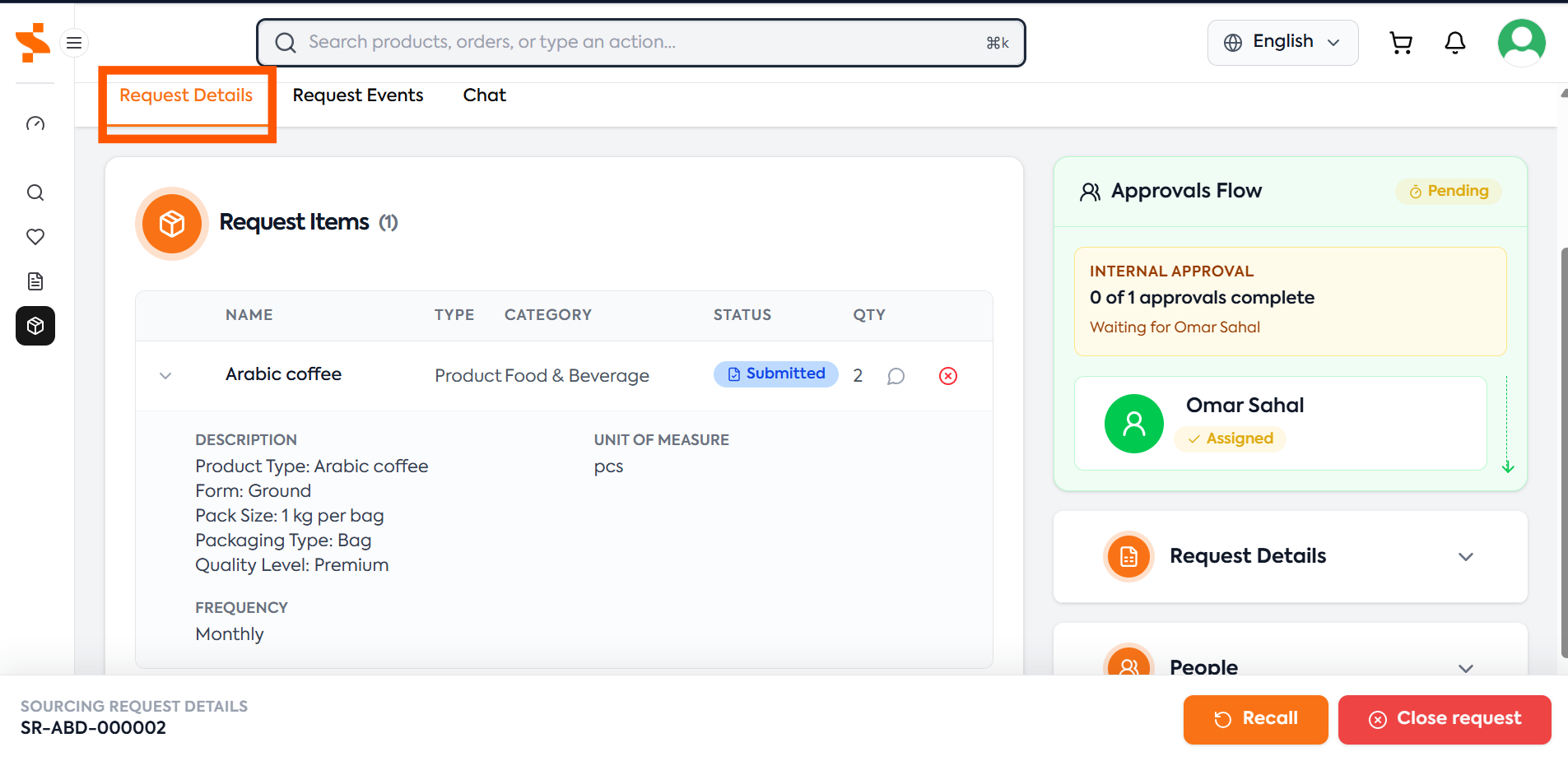
The Request Details tab provides a read-only summary of the Sourcing Request.
The information displayed includes:
- SR Number
- Request type
- Category
- Status
- Chargeability
- Request items
- item status
- Approval Site
- Other sites where the items are needed
- Required By Date
- Reference information
- Attachments
Item statuses may differ from the overall request status. For example, one item may have a status of Completed, while another item in the same request may still be Sourcing. This is because products and services can be sourced and fulfilled at different times. For detailed information about each status and what it means, see Understanding Status Flows
Approval Flow
The Approval Flow tab shows the internal approval progress for the request.
Each approver may display a status such as:
- Assigned
- Approved
Use this panel to see where the request is in the internal approval process.
The Sourcing Request is sent to ProcureNet only after the required internal approval process has been completed.
Request Items
The Request Items table lists the products or services included in the request.
Information includes:
- SR number
- Product or service name
- Request type
- Category
- Item status
- Quantity
- Unit of Measure
- Frequency
- Description or specifications
Click the chevron (▼) to expand the details of the item.
Request Events
The Request Events tab provides a chronological history of activity throughout the request lifecycle.
Each event shows:
- Event title
- User information
- Event details
- Date and time
Use Request Events to find out:
- When the request was created and by who
- When the request was submitted
- Who approved the request and when
- Status changes
- When the request was completed or closed
Review Request Events when you need to understand what changed, who performed an action, or when the request moved to its current status.
Chat
Each Sourcing Request includes a built-in chat for communicating with the ProcureNet procurement team. Open the Chat tab within the request to view or participate in the conversation.
The chat can be used by people assigned to the site, including the request creator and approvers.
Sending a Message
- Open the Chat tab.
- Type the message in the input field.
- Use Enter to add a new line without sending.
- Press send button to send message.
The message appears in the conversation for that Sourcing Request.
Attaching Files
To send a file through the chat:
- Select the paperclip icon next to the message field.
- Select up to 5 files.
- Ensure that each file is no larger than 20 MB.
- Add a message explaining the attachment.
- Send the message.
Attached images appear as previews. Other supported file types, such as PDFs and documents, appear as downloadable links.
When to Use Chat
Use the request chat to:
- Answer questions from ProcureNet
- Provide missing specifications
- Clarify quantities, pack sizes, or frequencies
- Share reference links
- Upload supporting documents or images
- Explain requirements
- Discuss possible sourcing options