Creating and Managing Order Lists
Creating a New Order List
-
Navigate to Order Lists in the sidebar.
-
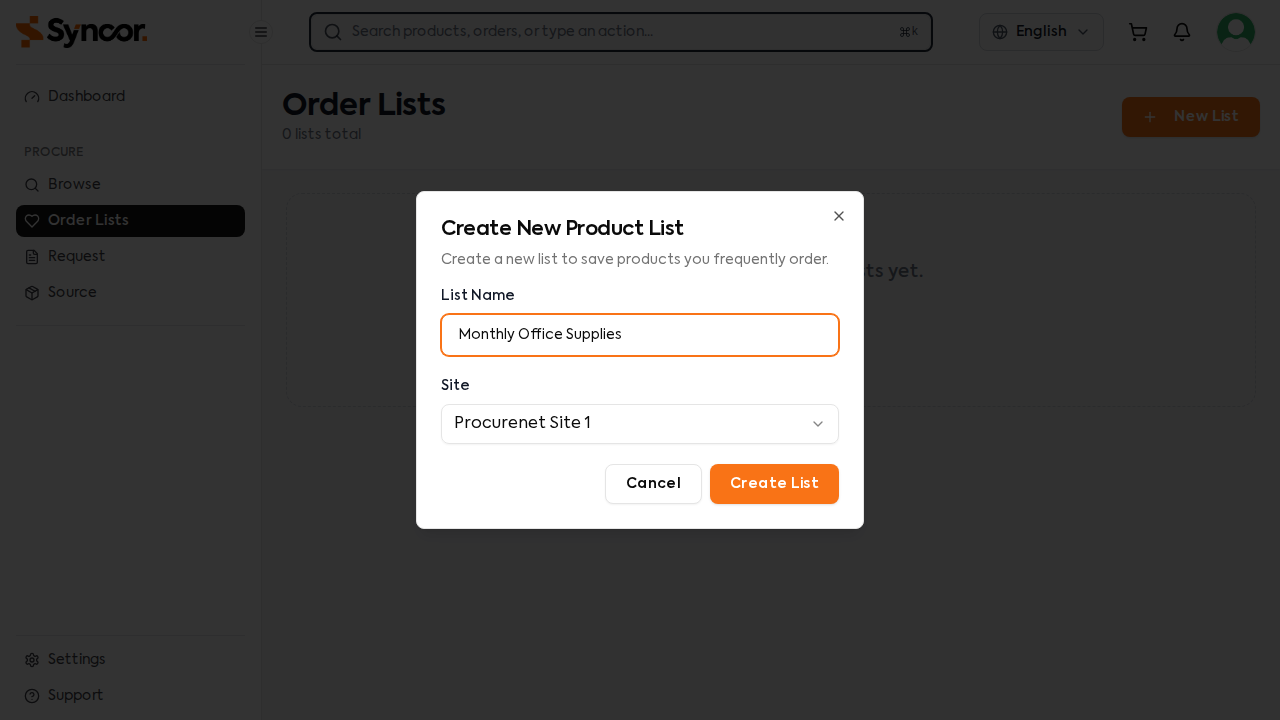
Click "+ New List" in the top right corner.
-
In the Create Order List modal, fill in:
| Field | Required | Description |
|---|---|---|
| List Name | Yes | A descriptive name for your list (e.g., "Monthly Office Supplies") |
| Site | Yes | The site this list is associated with. Defaults to your current site. |
- Click Create List.
You'll be redirected to the Order Lists index page where your new list appears.
You can also create an Order List directly from a Purchase Request using the Create Order List from PR option. This copies all the products and quantities from the PR into a new list.
Adding Products to an Order List
From the Order List Detail Page
- Open your Order List by clicking View or clicking the list card.
- Click "+ Add Products" in the products section header.
- Browse or search the product catalog in the modal that appears.
- Select the products you want to add.
- Products are added with a default quantity of 1.
From the Product Catalog
While browsing the catalog, you can add a product directly to an existing Order List. When creating a new Order List from the catalog, the product is automatically included.
Managing Products in a List
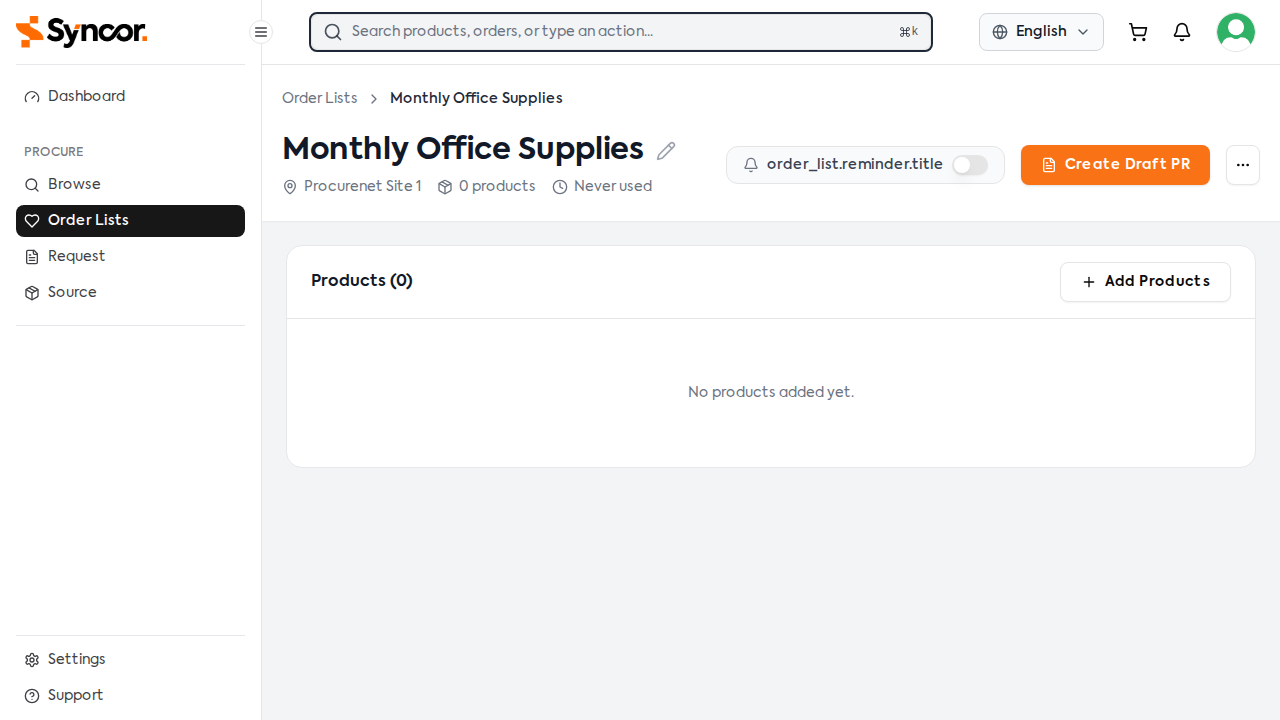
The Order List detail page shows all products in a table with the following columns:
| Column | Description |
|---|---|
| Product | Product image, name, category, SKU, and variant attributes |
| Quantity | Adjustable quantity selector (use +/- buttons or type a number) |
| UOM | Unit of measure / packing |
| Unit Price | Price per unit |
| Total | Calculated total (quantity x unit price) |
| Action | Remove button (trash icon) |
Changing Quantities
Use the quantity selector next to each product to adjust the amount. Changes save automatically.
Removing a Product
- Click the trash icon in the Action column.
- Confirm the removal in the dialog.
The estimated total for the entire list is shown at the bottom of the products table.
Editing an Order List Name
- On the Order List detail page, click the pencil icon next to the list name.
- Type the new name.
- Press Enter to save or Escape to cancel.
Deleting an Order List
- Click the three-dot menu (⋯) on the Order List card or detail page.
- Select Delete Order List.
- Confirm the deletion in the dialog.
Deleting an Order List is permanent and cannot be undone. The products in the list are not affected -- only the list itself is removed.