Setting Reminders
Reminders help you stay on top of recurring orders. When a reminder is set, Syncor tracks when you last used the Order List and alerts you when it's time to reorder.
Enabling a Reminder
-
Open the Order List detail page.
-
In the Reminder section (top right area), toggle the switch to ON.
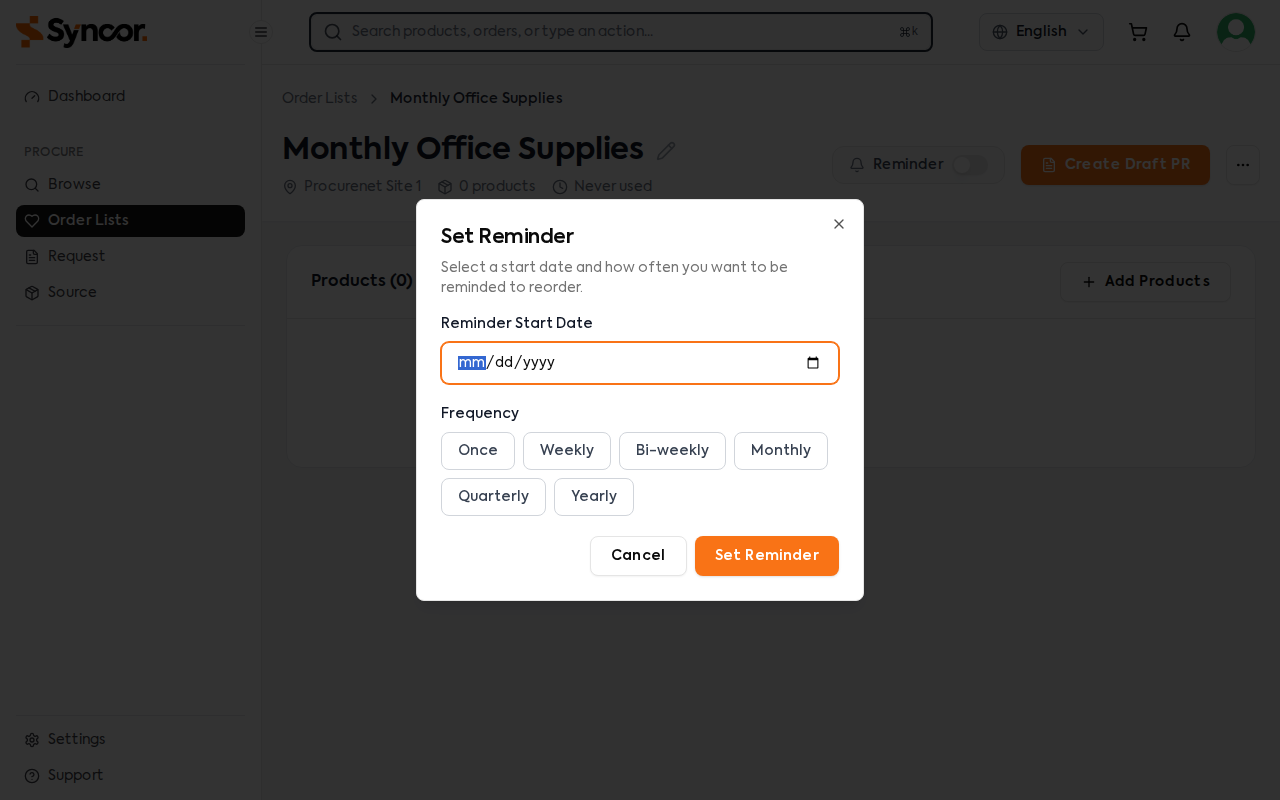
-
In the Set Reminder modal, configure:
| Field | Description |
|---|---|
| Start Date | The first date you want to be reminded. Must be today or a future date. |
| Frequency | How often the reminder repeats. |
- Click Set Reminder.
Frequency Options
| Frequency | Description |
|---|---|
| Once | Single reminder on the start date only |
| Weekly | Every 7 days |
| Bi-weekly | Every 14 days |
| Monthly | Every month |
| Quarterly | Every 3 months |
| Yearly | Every 12 months |
Reminder States
When a reminder is active, the Order List shows the next order date and frequency. As the date approaches or passes, visual warnings appear:
| State | Appearance | Meaning |
|---|---|---|
| Normal | Blue/neutral badge | Next order date is not yet approaching |
| Warning | Orange banner | The next order date is approaching or is today |
| Overdue | Red banner | The next order date has passed and the list hasn't been used |
Warning and overdue banners appear both on the Order List card (index page) and on the detail page.
Editing a Reminder
- When a reminder is active, click the pencil icon next to the frequency badge.
- Update the Start Date or Frequency in the modal.
- Click Set Reminder to save.
Disabling a Reminder
- Toggle the reminder switch to OFF.
- Confirm in the dialog.
The reminder is removed and no further notifications will be sent for this list.
Using an Order List to create a Purchase Request updates the "last used" date, which resets the reminder cycle for recurring frequencies.